
In this guide, we’ll demonstrate how to read Diagnostic Trouble Codes (DTCs) and access live data streams on a 2021 Genlyon C6 using LAUNCH X-431 PAD V ELITE.
Device Used
LAUNCH X431 PAD 5 LINK HD
Vehicle Tested
2021 Genlyon C6
1. Enter Intelligent Diagnosis
Power on LAUNCH X431 PAD 5 LINK HD and connect it to the vehicle.
From the main menu, select [Intelligent Diagnose]
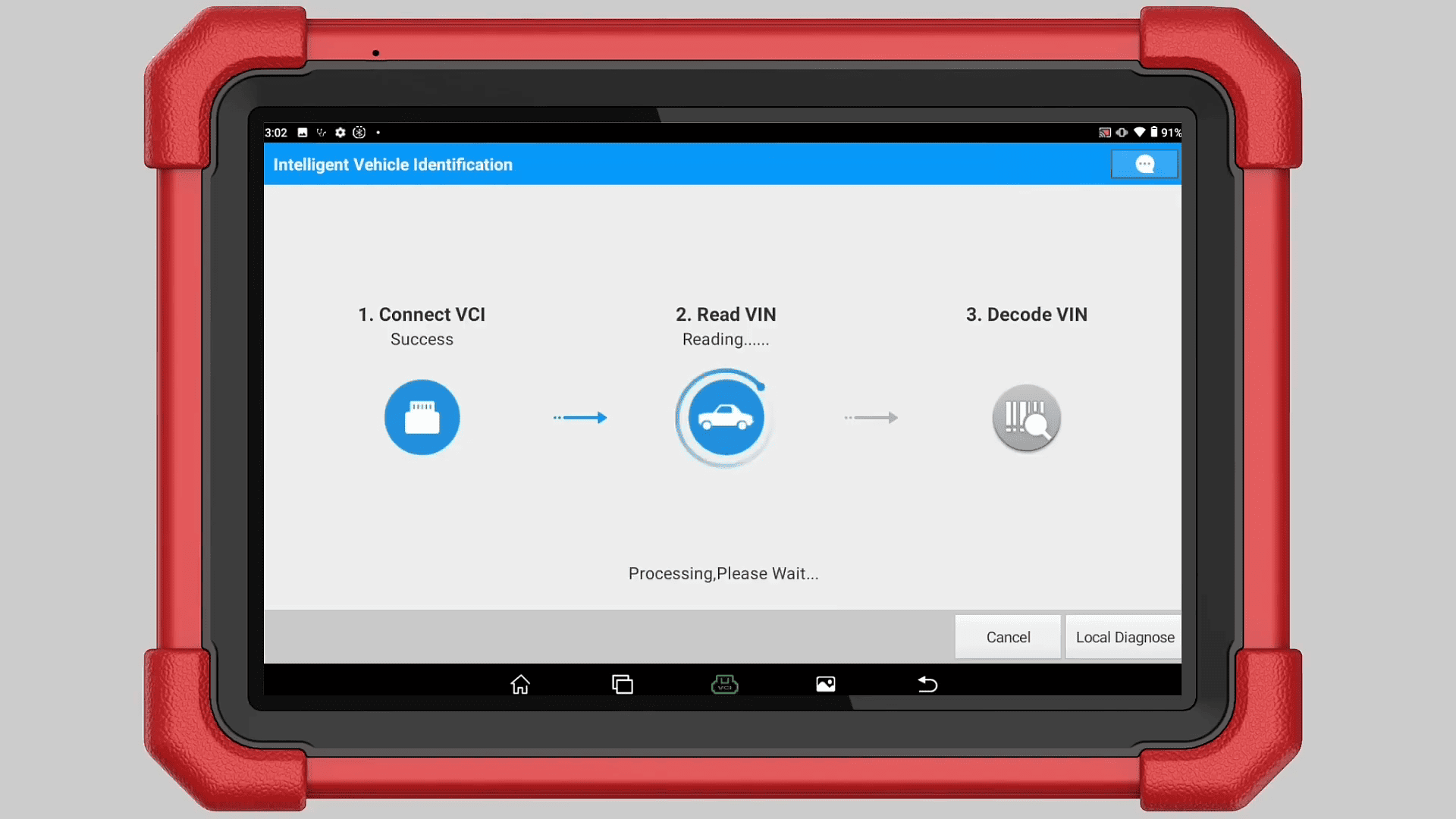
The system will automatically identify the vehicle and retrieve basic vehicle information (Connect VCI → Read VIN → Decode VIN)
2. Enter the Engine System
After vehicle identification is completed, select [Engine System]
Verify that the displayed vehicle information matches the vehicle being diagnosed.
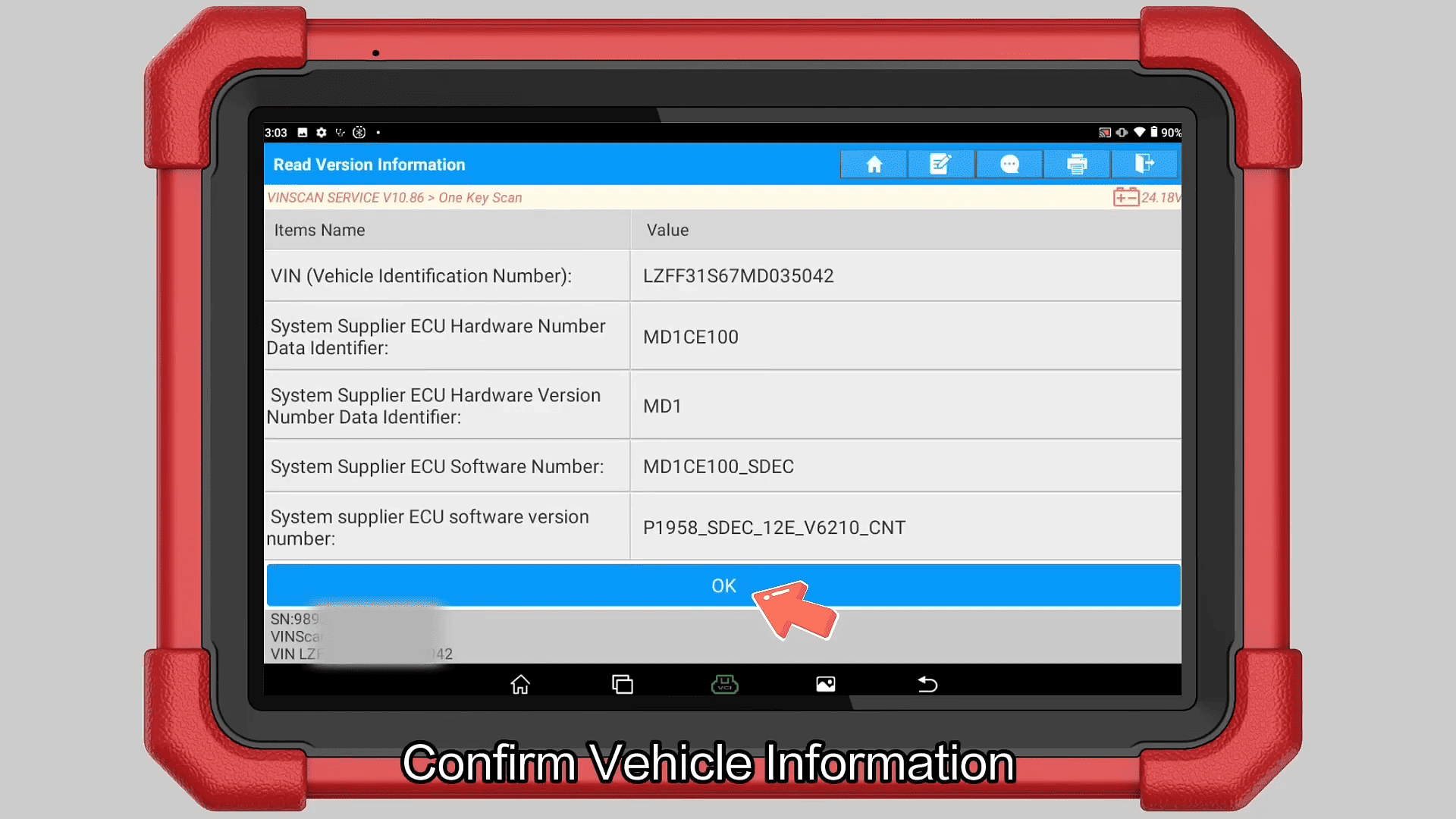
This ensures that the correct diagnostic protocols and functions are loaded.
3. Read Diagnostic Trouble Codes (DTCs)
From the Engine System menu, select [Read Diagnostic Trouble Codes]
The tool will communicate with the engine control unit and display any stored, pending, or active fault codes.
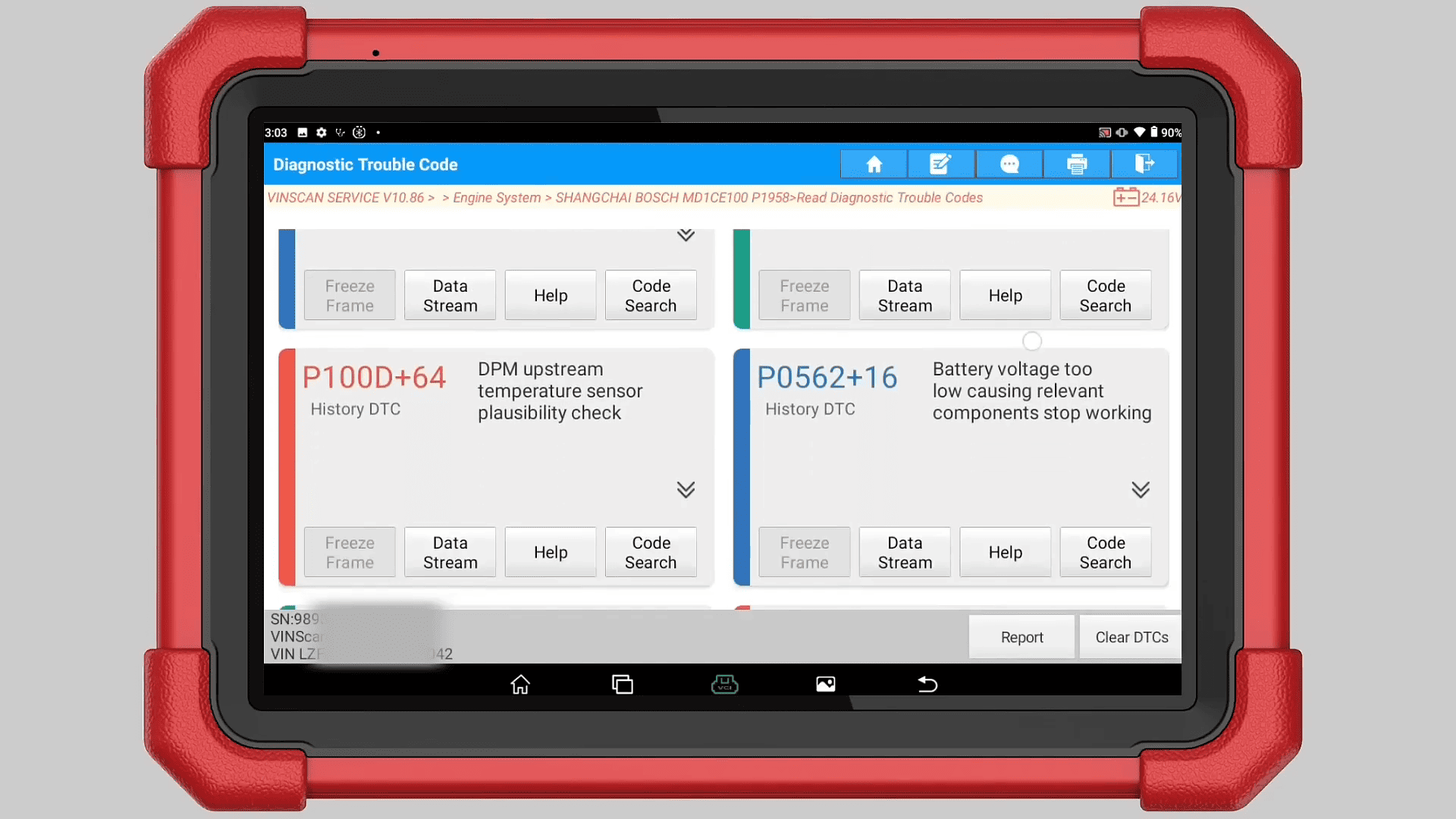
Technicians can use this information to quickly identify system faults and determine the next diagnostic steps.
4. Read Live Data Stream
Return to the Engine System menu and select Read Data Stream
Next, select [Read All Data Stream #1]
The system will load available real-time operating parameters from the ECU.
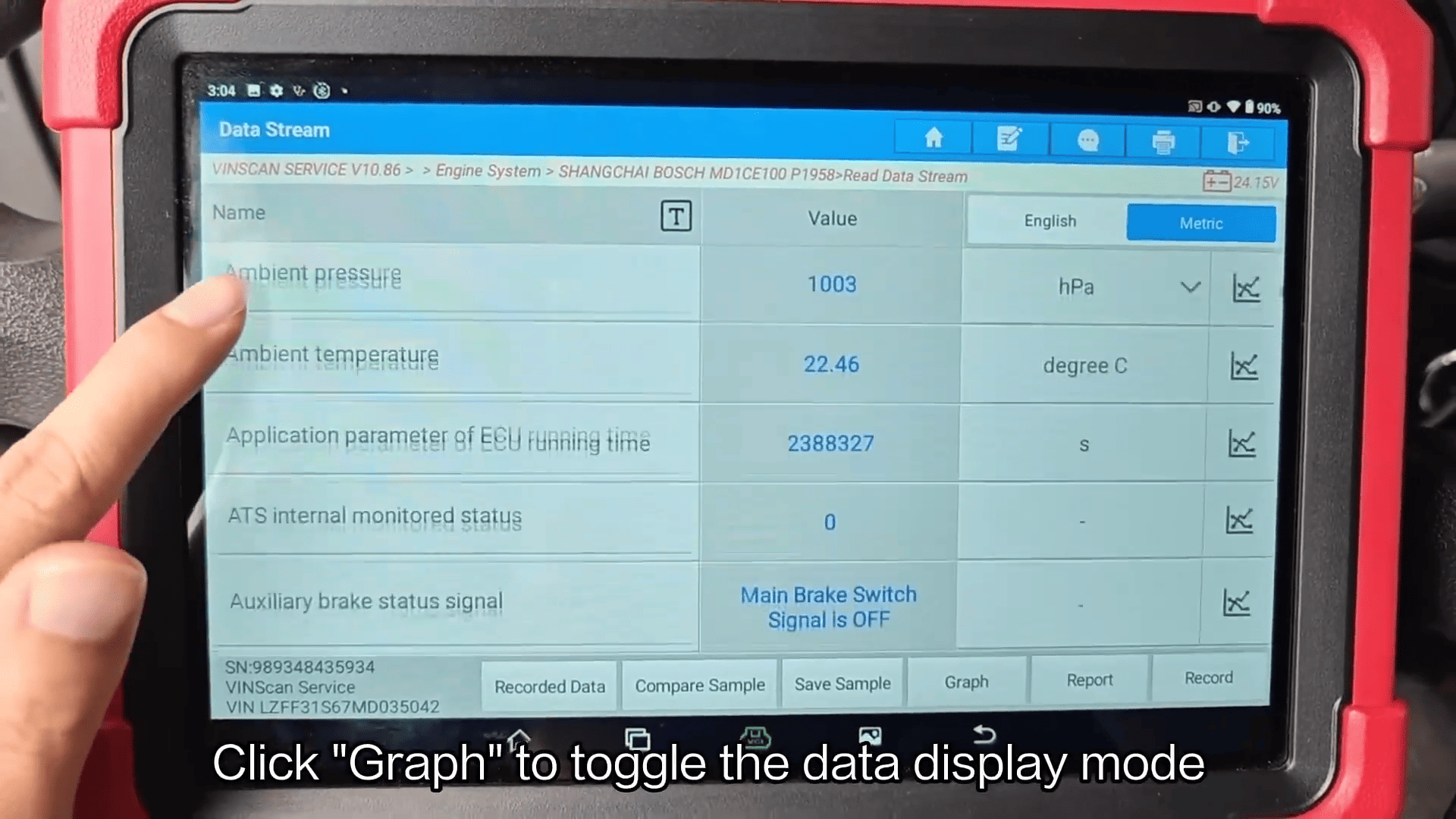
Step 5: Select Required Parameters
Choose the specific data items you wish to monitor.
After selecting the desired parameters, tap [OK]
6. Switch to Graph Mode
To better analyze sensor behavior and system performance, tap [Graph]
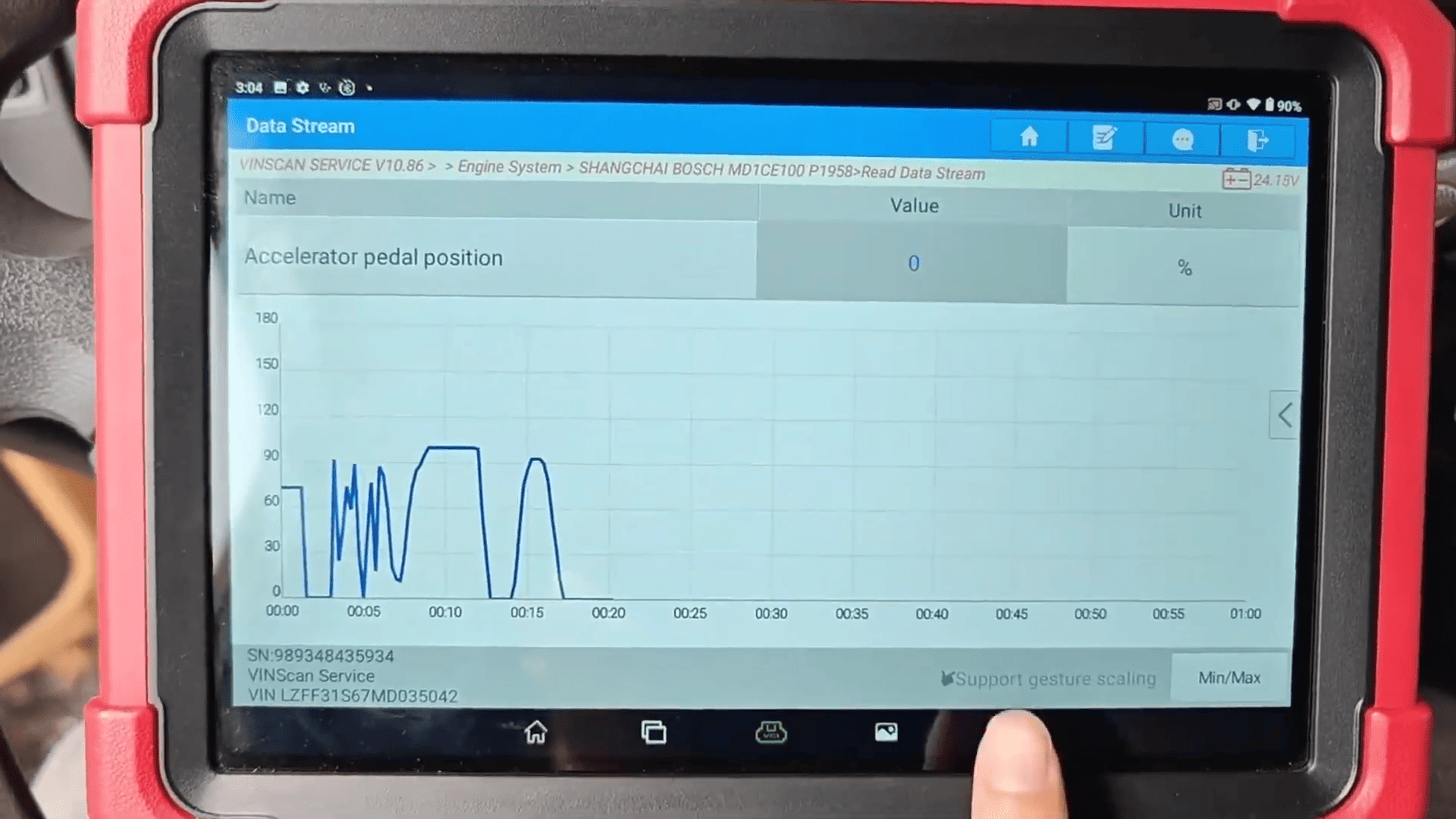
The X431 PAD 5 diagnostic tool will switch from numerical values to graphical display mode, making it easier to observe trends, fluctuations, and abnormal signals in real time.
Graph mode is particularly useful for diagnosing intermittent faults and comparing multiple parameters simultaneously.
Diagnosis Complete
The operation is now complete.
