
If you encounter software crashes, network issues, or unexpected errors while using your Autel MaxiIM IM608 Pro diagnostic tool, capturing and uploading system logs can help Autel’s support team diagnose the root cause quickly.
Here’s how you can capture system logs on the IM608 Pro and send them for analysis:
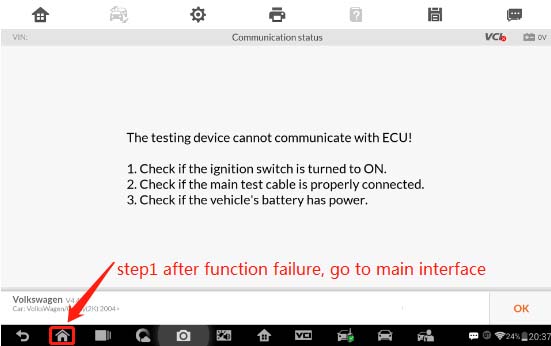
Step 1: Go back to the main screen on your IM608 Pro when a function fails.
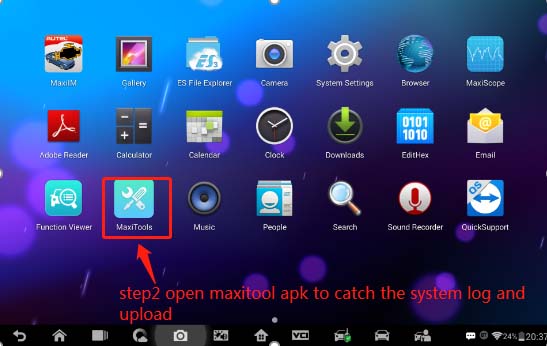
Step 2: Open the MaxiTools app and select the Log option to begin capturing diagnostic data.
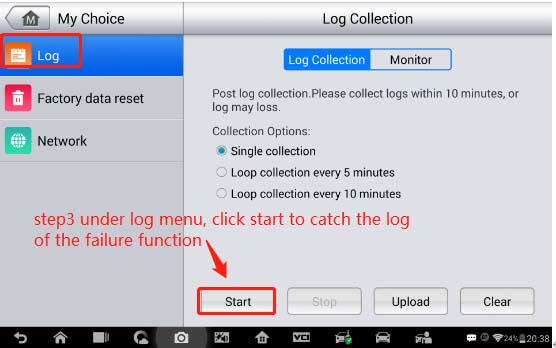
Step 3: Tap Start to record logs related to the issue, then wait while the tool collects the data.
Step 4: Once collection is complete, press Upload to send the datalog directly to the Autel server.
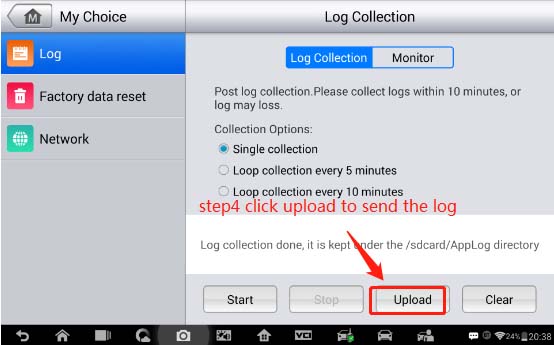
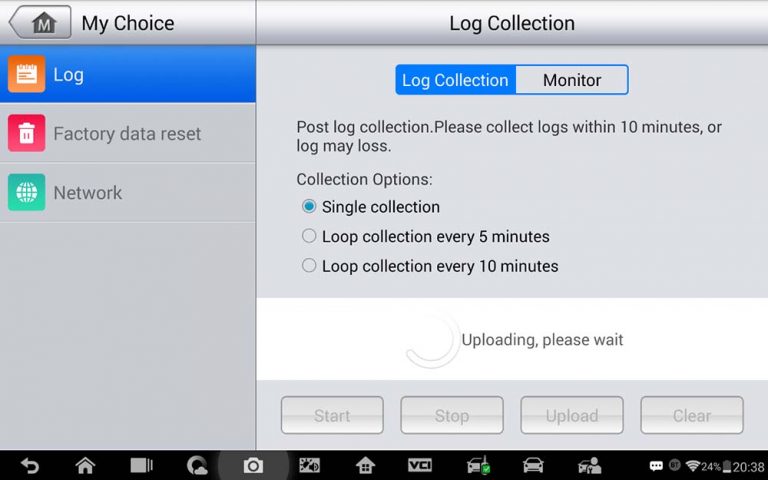
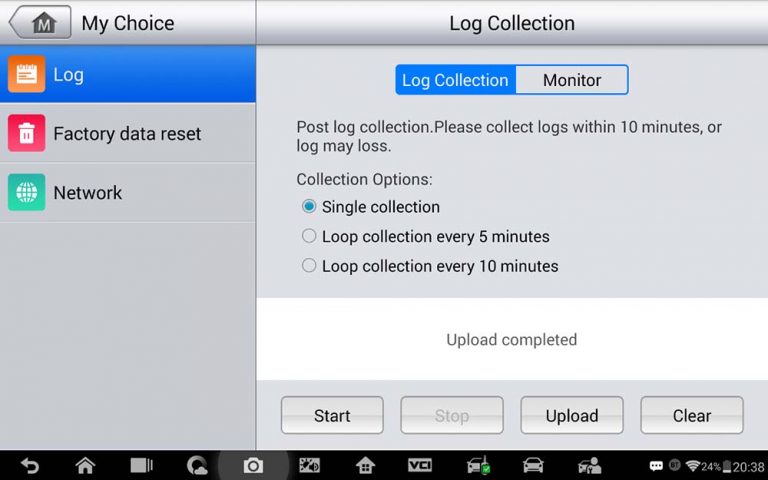
After uploading, make sure to provide your IM608 Pro II serial number so Autel tech support can trace your logs and assist you further.
These logging steps also apply to other Autel diagnostic tablets
