
When adding keys to a BMW BDC2 module, unexpected issues such as device power outage, disconnection, or operational interruption may occur. These errors can cause the BDC2 system information to become abnormal, resulting in loss of version data or coding.
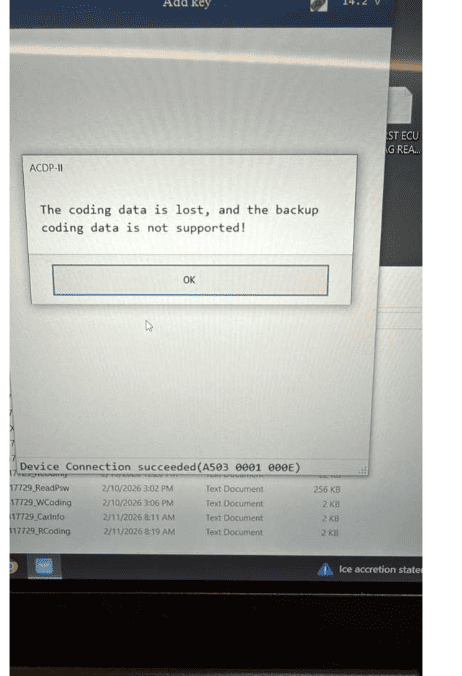
In this guide, we will explain how to repair a BMW BDC2 abnormal version using Yanhua ACDP Module 38 and restore both system and coding data safely.
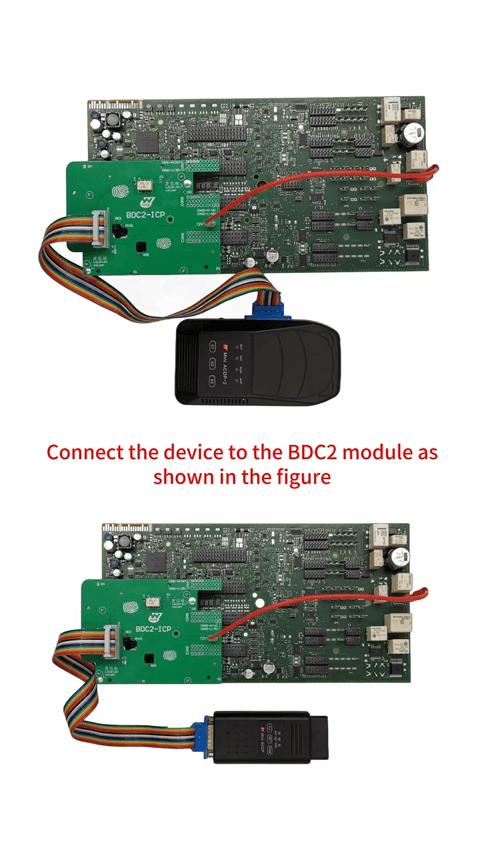
Step 1: Connect to the BDC2 Module
Connect your programming device to the BMW BDC2 module as shown in the wiring diagram.
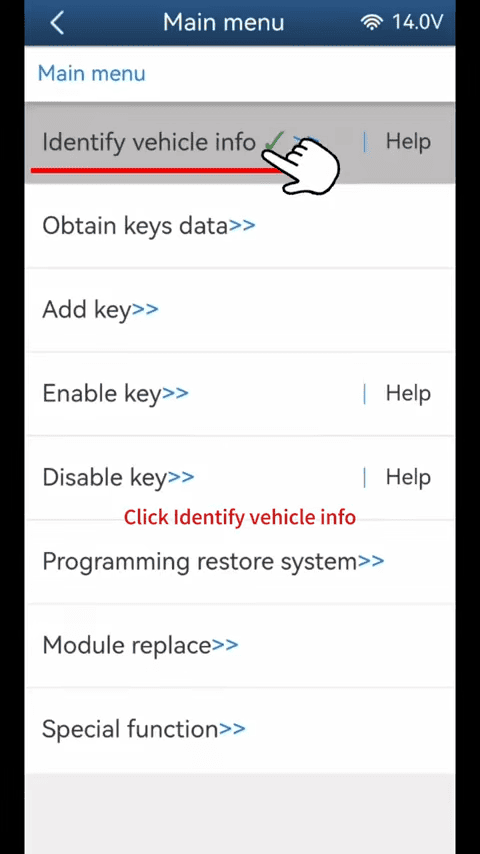
Click “Identify Vehicle Info.”
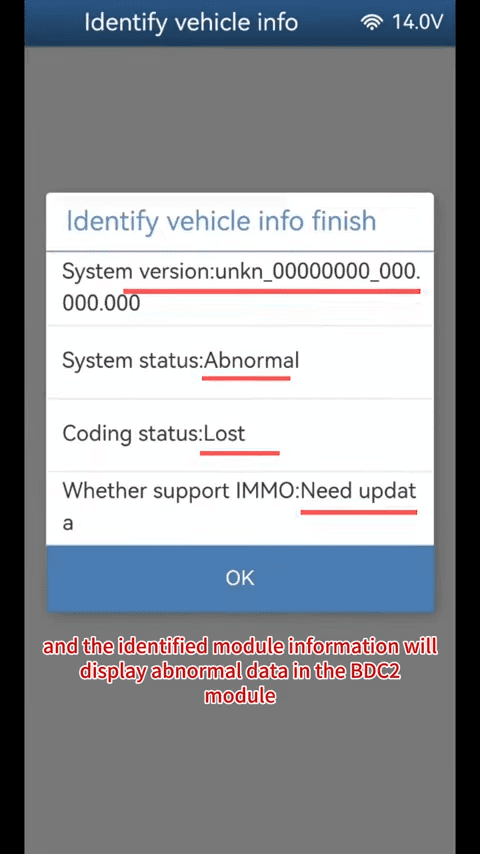
If the module shows abnormal system data, proceed with repair.
Step 2: Update the BDC2 System
Click “Programming Repair System.”
Select Step 2: Update BDC2 System
Click OK → Continue
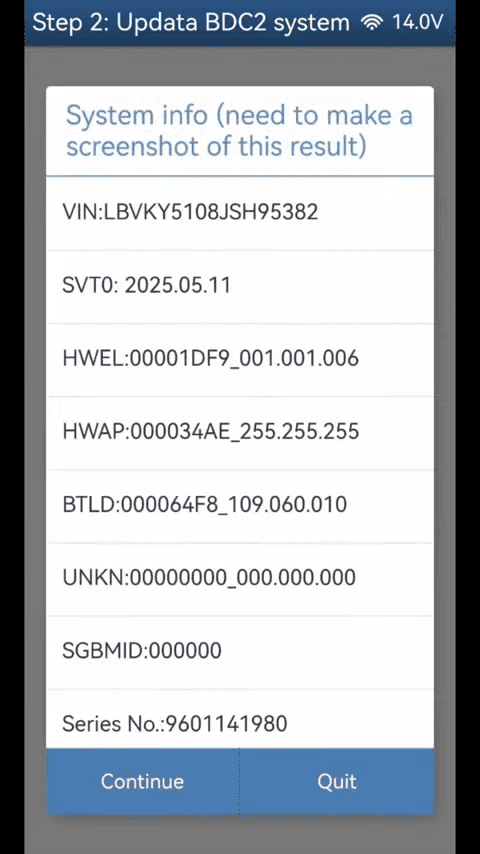
The system will identify the vehicle information.
Select the original system version (for example: Version 108.020.020)
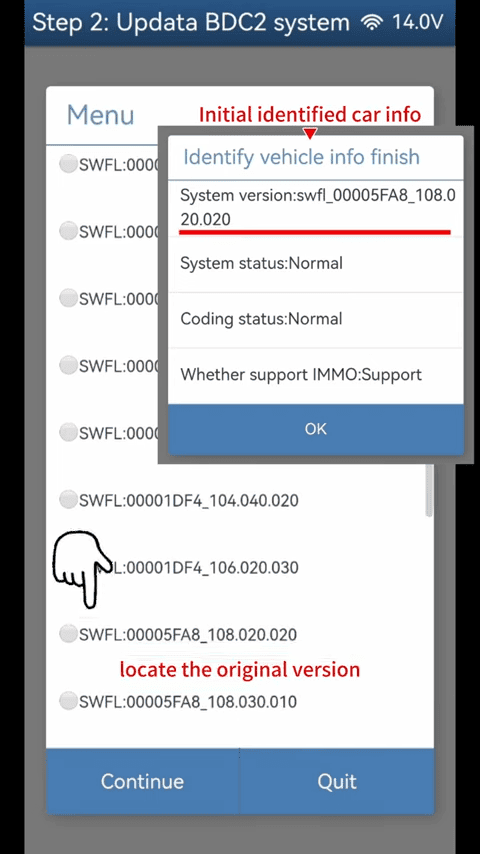
Click Continue → OK
The system data programming will begin.
Wait until the programming process completes.
Once finished, click OK to confirm.
Step 3: Write Coding Data
After updating the system:
Click Step 3: Write Coding Data
Click Continue
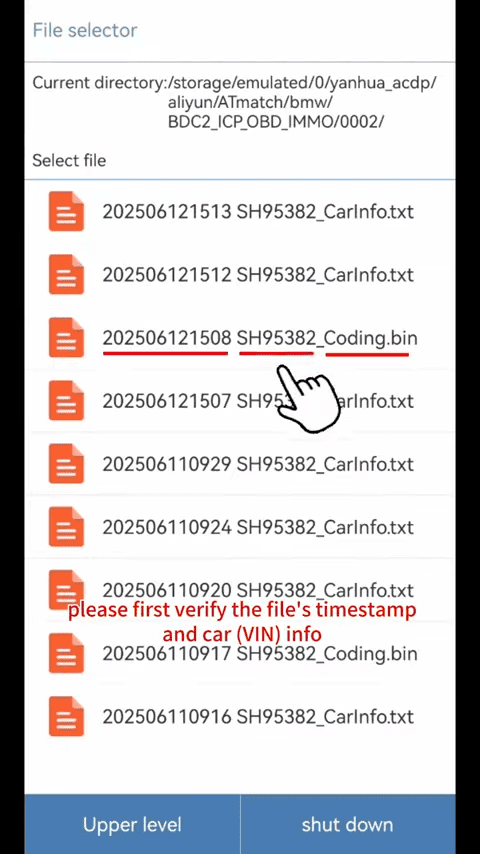
Select the coding file (usually named Coding.bin)
Important:
Before selecting the Coding.bin file, verify:
-File timestamp
-Vehicle VIN information
-Make sure it matches the vehicle you are repairing.
Click Continue
Wait until coding data writing is completed
Click OK
Step 4: Confirm Repair Completion
Return to the main menu and click “Identify Vehicle Info” again.
If the system and coding display as normal, the BMW BDC2 repair is completed.
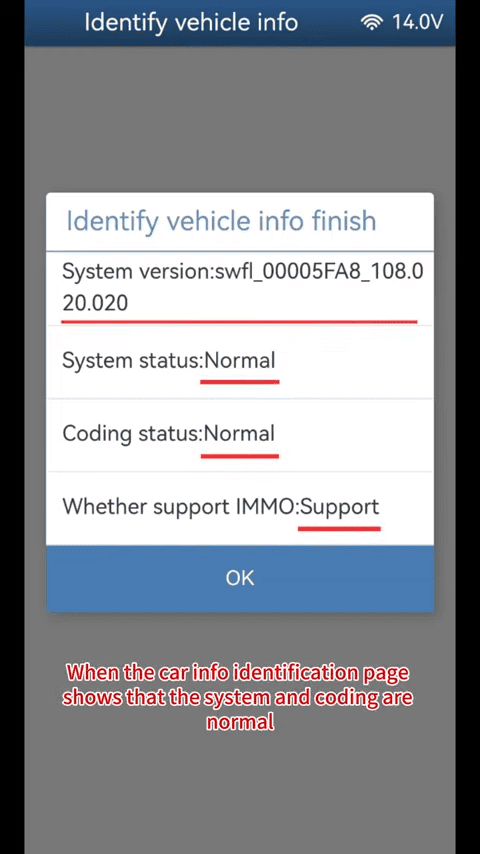
You may now continue the previously interrupted key programming operation.
Important Tips for BMW BDC2 Programming
Always ensure stable power supply during programming
Avoid disconnecting cables during data acquisition
Double-check coding files before writing
Use correct original system version when repairing
By carefully following the repair steps above, you can efficiently recover the BMW BDC2 module and avoid unnecessary module replacement.
