
If you’re experiencing issues with your LAUNCH X-431 diagnostic tablet (such as app crashes, connection problems, or software glitches), collecting and uploading application logs is essential for efficient troubleshooting. Follow this step-by-step guide to enable log collection and submit logs on your Launch X-431 PAD 9.
Step 1: Access the User Info Section
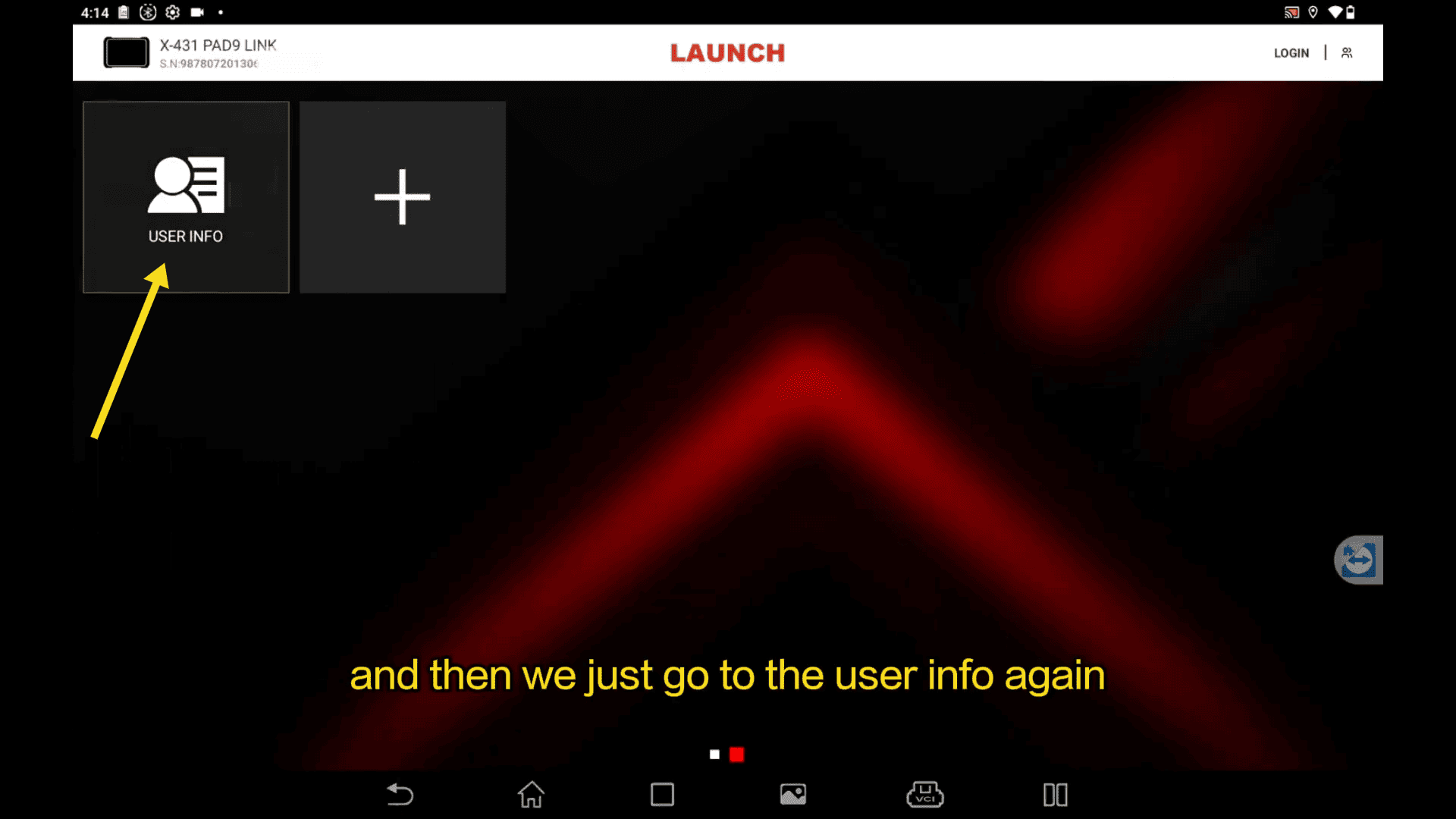
Open the LAUNCH diagnostic app on your X-431 PAD 9. If the “User Info” icon is not visible on the home page, please swipe the screen and then tap the “+” add icon to include it.
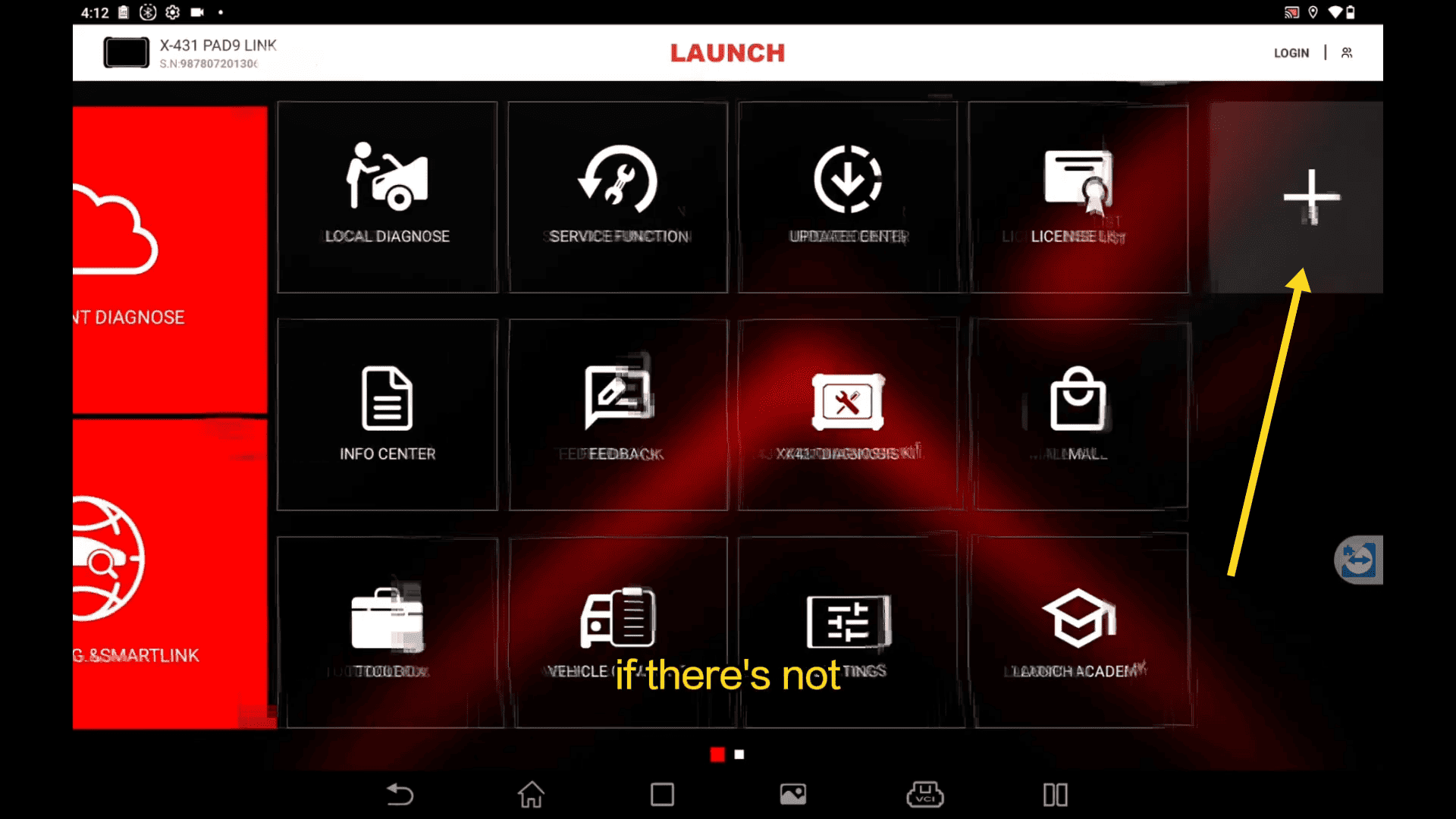
Step 2: Reveal the Hidden Log Collection Menu
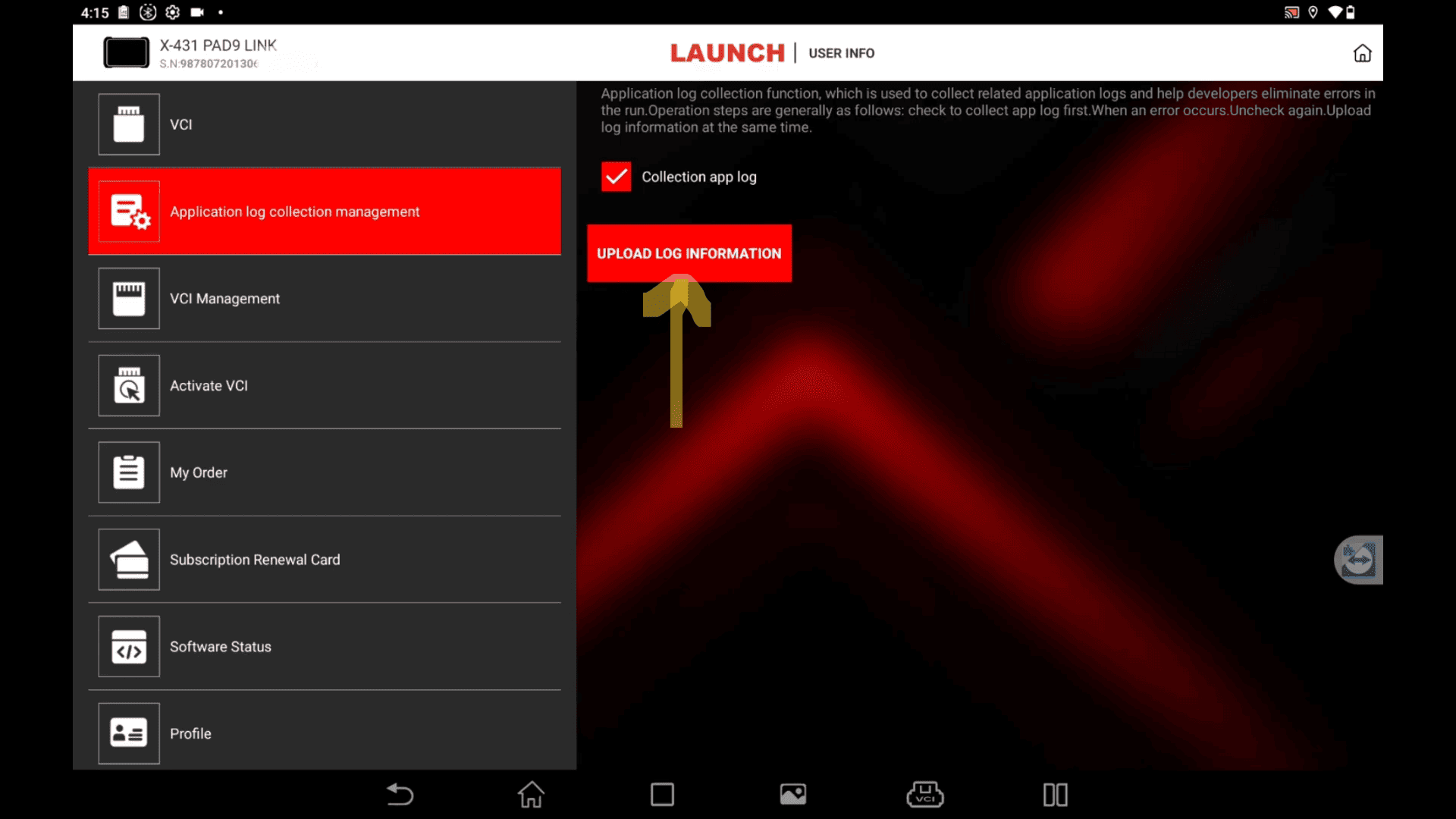
Tap the “User Info” icon. In the menu, rapidly tap the “VCI” icon approximately 5 times. This will display the hidden “Application Log Collection Management” option.
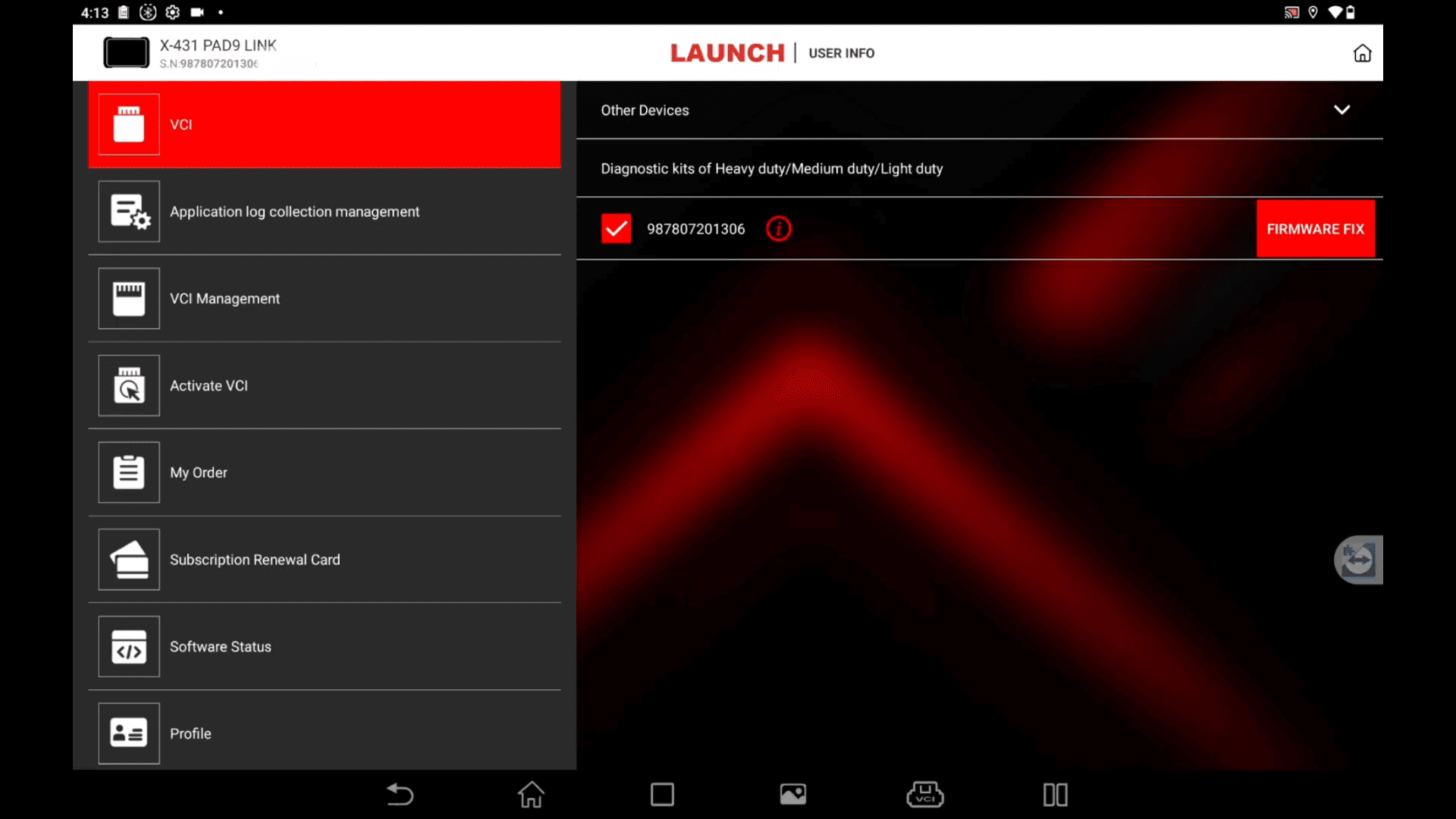
Step 3: Enable Log Collection
Select “Application Log Collection Management” and ensure the “Collect App Log” option is checked (crossed).
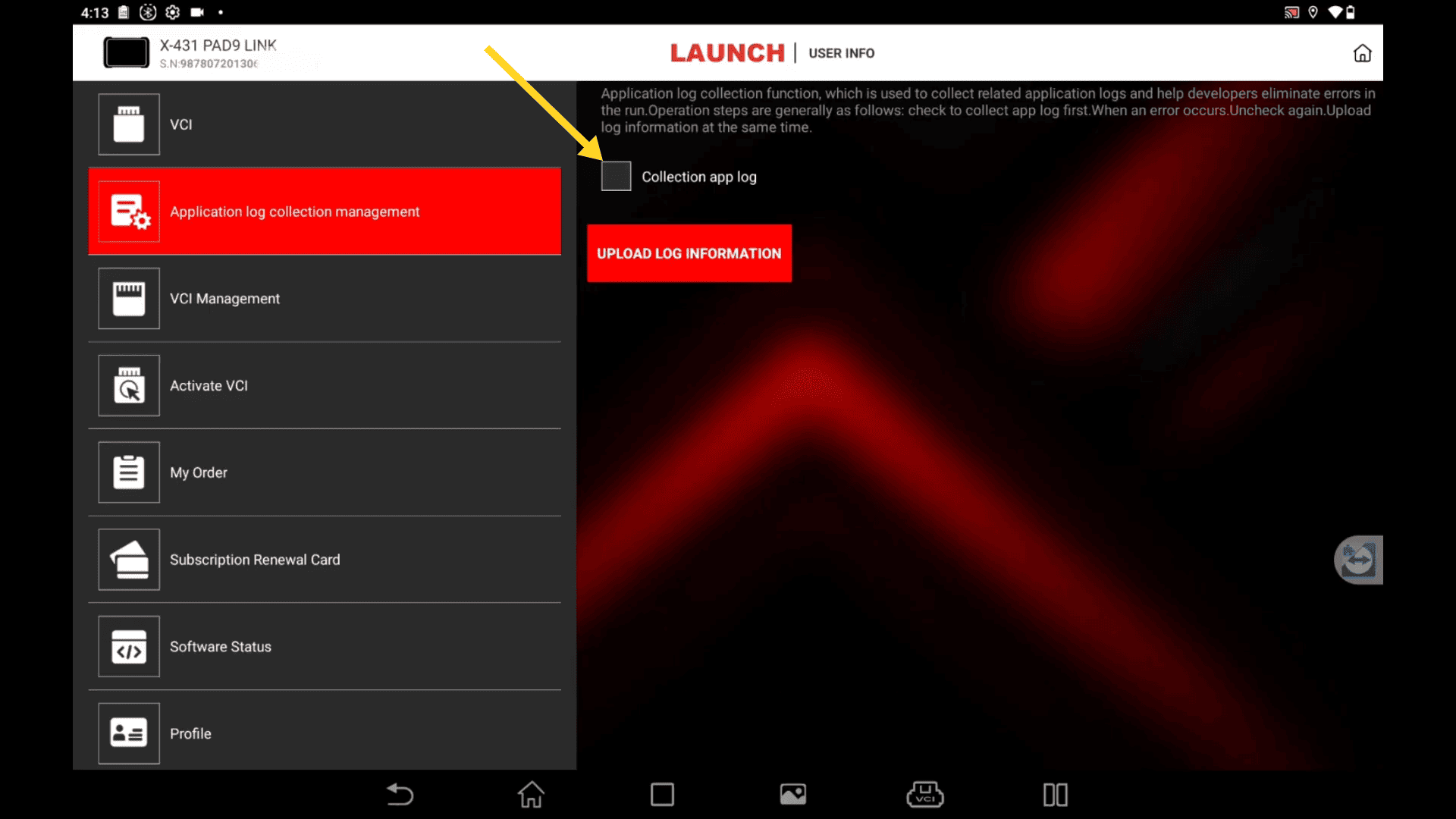
Step 4: Perform Diagnostic Operations
Return to the main menu and run your usual diagnostics (Intelligent Diagnose or Local Diagnose) on the vehicle to reproduce the issue and capture relevant logs.
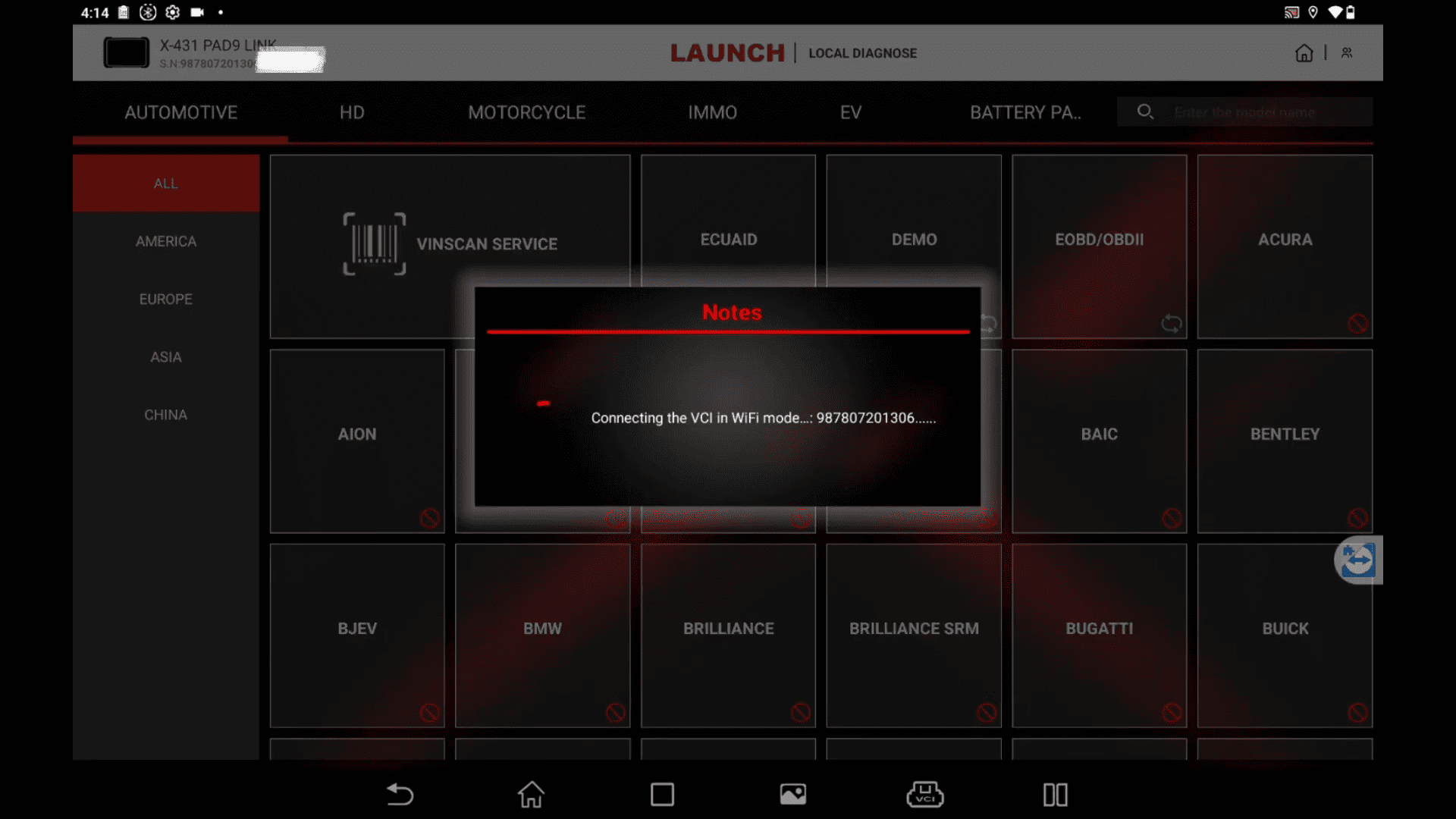
Step 5: Upload the Logs.
Go back to the home page, re-enter “User Info” (repeat the 5-tap on VCI if the menu hides), and tap “Upload Information” to send the logs to LAUNCH support.
This LAUNCH X431 Tool application log upload method ensures precise technical support. For models like X-431 PAD series or PRO, the process is identical. Contact support with your serial number for faster assistance.
